- Published
PageSpeed Insights, Lighthouse or WebPageTest
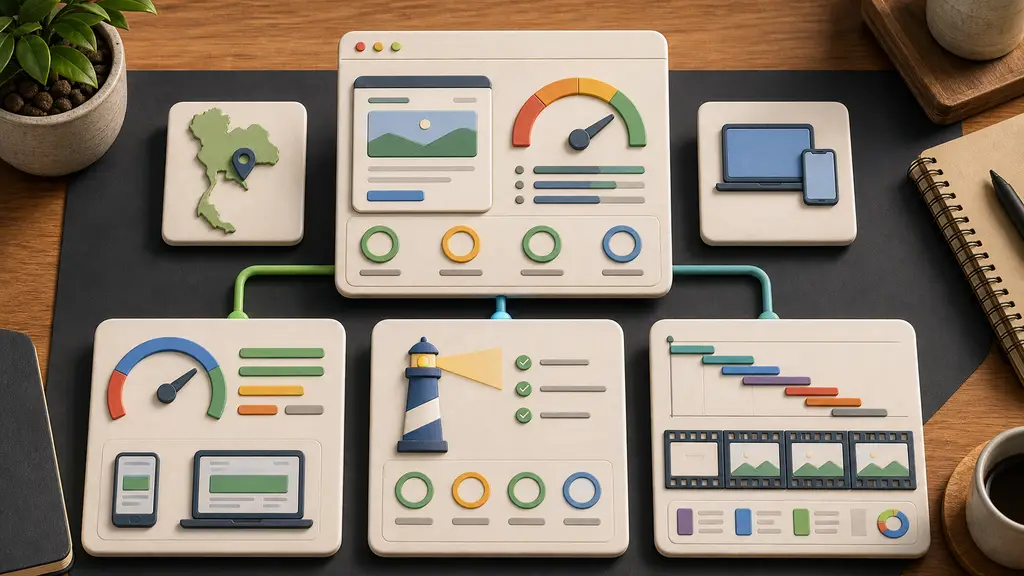
PageSpeed Insights, Lighthouse, and WebPageTest are often mentioned together, but they are not the same tool. They overlap, because PageSpeed Insights uses Lighthouse for lab diagnostics, but each one answers a different performance question.
For a business website, the useful question is not “what score did we get?” The useful question is what slows down the pages that create enquiries, bookings, sales, or trust. A service page, booking flow, product page, checkout, or contact form may need a different test setup than a generic homepage score.
The short answer
Use all three when performance matters, but use them for different decisions.
- PageSpeed Insights is best for combining field data and a quick Lighthouse lab run.
- Lighthouse is best for repeatable local audits, debugging, and checking performance alongside accessibility, best practices, and SEO.
- WebPageTest is best for detailed loading analysis: location, connection, waterfall, filmstrip, repeat views, request timing, and experiments.
If a page is important commercially, do not treat one score as the answer. Compare the tools, then inspect the page itself.
What PageSpeed Insights does well
PageSpeed Insights is the easiest starting point for a public URL.
It reports both field data and lab data when enough real-user data is available. The field data comes from the Chrome User Experience Report and reflects real users over a recent collection period. That makes it useful for seeing whether visitors actually experience poor LCP, CLS, or INP, instead of only seeing a synthetic test result.
The lab section uses Lighthouse. That gives immediate diagnostics for performance, accessibility, best practices, and SEO. For a quick first pass, PageSpeed Insights is useful because it puts real-user data and a controlled audit in one place.
If the report itself is confusing, the guide to reading a Google PageSpeed Insights report explains the score, field data, lab data, Core Web Vitals, and diagnostics section by section.
Use it for:
- Checking whether Core Web Vitals field data is available
- Comparing mobile and desktop experience
- Seeing whether a page or origin passes Core Web Vitals
- Getting a quick list of likely performance issues
- Explaining performance problems to non-technical stakeholders
Where PageSpeed Insights is weak
PageSpeed Insights is not a complete performance investigation.
Field data may be missing for new, small, low-traffic, or private pages. When field data is available, it is aggregated and does not show the exact request that caused a poor experience. Lab data is a simulated run, so it can differ from real users on other devices, networks, or locations.
The score can also distract from the real problem. A booking page that scores 87 but delays the date picker, payment step, or contact form can still hurt revenue. A page that scores lower because of one non-critical third-party script may be less urgent than a slower page that blocks enquiries.
Use PageSpeed Insights to decide where to look next, not as the final diagnosis.
What Lighthouse does well
Lighthouse is the underlying audit tool behind many performance reports.
It can run inside Chrome DevTools, from the command line, as a Node module, through Lighthouse CI, and through PageSpeed Insights. That makes it useful when performance checks need to be repeated during development, review, or deployment.
Lighthouse is especially useful for:
- Reproducing a performance issue while working on the code
- Comparing before and after changes
- Auditing pages that require authentication through Chrome DevTools
- Checking accessibility, best practices, and SEO next to performance
- Preventing regressions with Lighthouse CI on important templates
For implementation work, Lighthouse is often better suited than PageSpeed Insights because it can be part of a developer workflow rather than a manual website check.
Where Lighthouse is weak
Lighthouse is still a lab tool.
It runs a controlled audit. That is good for repeatability, but it cannot fully represent every real visitor, device, network, browser extension, third-party outage, or regional delivery path. A single Lighthouse report also does not show the same level of request-by-request loading evidence that WebPageTest provides.
Lighthouse is very useful for debugging, but it should not be treated as proof that real users are happy.
What WebPageTest does well
WebPageTest is the best of the three for understanding how a page actually loads.
It lets you choose a test location, browser, device profile, connection, repeat view, and more detailed testing conditions. That matters when visitors use different networks, devices, or regions. A page can feel fast from one test location and slow from another.
The biggest advantage is evidence. WebPageTest shows waterfall charts, filmstrips, request timing, page weight, visual progress, repeat views, and detailed run data. That helps answer questions like:
- Which request delayed rendering?
- Was the server slow before the browser could do anything?
- Did a third-party script block useful content?
- Did the hero image arrive too late?
- Did the page become visually complete long before it became interactive?
- Did caching improve the repeat view?
This makes WebPageTest useful when the fix needs to be precise.
Where WebPageTest is weak
WebPageTest can be more complex than the problem requires.
It has many settings, and a poorly chosen test location, browser, connection, or device can create misleading conclusions. It can also tempt people into overanalyzing one synthetic run instead of comparing patterns across field data, repeated tests, and actual user flows.
Use WebPageTest when detail matters. For a quick screen, PageSpeed Insights is faster. For development repeatability, Lighthouse is usually more convenient.
How to use the tools together
A repeatable workflow looks like this:
- Start with PageSpeed Insights to see field data, Core Web Vitals status, and a quick Lighthouse audit.
- Use Lighthouse locally or in DevTools to reproduce and test likely fixes.
- Use WebPageTest for the important pages where the cause is not obvious.
- Compare mobile and desktop separately.
- Test the pages that matter commercially, not only the homepage.
- Connect findings to implementation work: images, fonts, scripts, caching, server response, third-party tools, layout stability, and JavaScript cost.
The goal is not a perfect score. The goal is a page that loads useful content quickly, stays stable, responds to interaction, and supports the business outcome.
What I check on business websites
For a business website, I usually test the flows that create value:
- Homepage and main service pages
- Villa, tour, room, product, or menu pages
- Booking, enquiry, checkout, or contact forms
- Mobile landing pages
- Multilingual pages
- Pages used by visitors in the site’s important regions
The tool choice depends on the question. If the problem is “Google says Core Web Vitals are poor”, start with PageSpeed Insights and Search Console. If the problem is “the page feels slow on mobile”, use Lighthouse and WebPageTest. If the issue appears only for overseas visitors, WebPageTest location testing becomes more important.
Official references
The tool details change over time, so performance advice should stay source-backed. Useful official references:
- Google PageSpeed Insights documentation
- Chrome Lighthouse documentation
- Official WebPageTest repository and documentation
- Web Vitals metrics overview
Use the official docs for exact interface details, but make the final decision from the page, the users, and the business flow.
Frequently Asked Questions
Does a high PageSpeed Insights score mean a page is actually fast for users?
Not necessarily. A booking page can score well but still delay the date picker, payment step, or contact form, while a page scoring lower because of one non-critical script may be less urgent. The score should guide where to look next, not serve as the final diagnosis.
Is Lighthouse the same thing as PageSpeed Insights?
No, though they overlap. PageSpeed Insights uses Lighthouse for its lab diagnostics but adds real-user field data on top. Lighthouse alone is a lab tool that can run locally, in DevTools, or in CI, which makes it more useful for repeatable checks during development.
Is WebPageTest necessary for every performance check?
No. It is most useful when the cause of a slowdown is not obvious and detailed evidence like waterfalls and filmstrips is needed. For a quick check, PageSpeed Insights is faster, and Lighthouse is usually more convenient for repeatable development testing.
Should performance testing focus only on the homepage?
No. The pages that create enquiries, bookings, or reservations, such as villa pages, booking flows, and contact forms, often need testing more than a generic homepage score, since that is where a slow experience actually costs business.
From performance data to fixes
The next step after testing is implementation. Performance tools should lead to concrete work: compressing images, reducing JavaScript, fixing layout shifts, improving cache headers, removing unused code, reviewing third-party scripts, or improving server response time.
For the metrics behind loading, stability, and responsiveness, read the Core Web Vitals guide. For the wider diagnostic workflow, start with website analysis for SEO and development. If the site needs targeted fixes, send me the URL and what feels slow.